Start a meeting on Quest
Open the POViewer Quest app and select Start meeting. Your room opens with screen sharing off.
 POViewerJoin a meeting
 MEETINGS FOR META QUEST
POViewer connects a person on Quest with teammates in their browsers. Talk, see guest webcams, share files, and show either screen—all in the same meeting.
One Quest host. Up to three browser guests. Screen sharing is optional.
 Quest and browser, connected
GETTING STARTED
Open the POViewer Quest app and select Start meeting. Your room opens with screen sharing off.
Send an email invitation or share the eight-digit room code. Guests open POViewer in their browser.
Approve each guest’s request on Quest. You can talk and chat right away, then turn on cameras or share a screen when you choose.
BUILT FOR WORK YOU DO TOGETHER
Get feedback while testing a build, help someone through a problem, or walk through an idea with your team.

Send a test APK to the Quest wearer, watch them try it, and discuss what to improve. Keep the build, feedback, and conversation in one room.
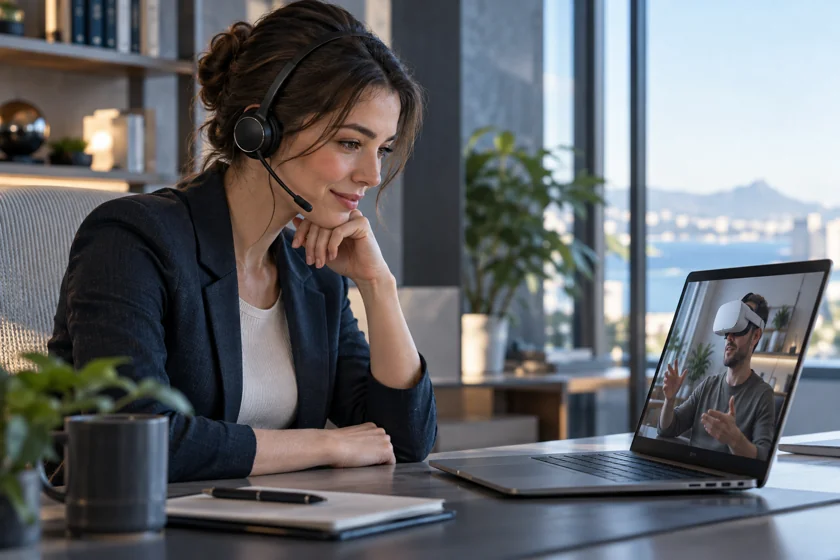
Ask the Quest wearer to share their view, then guide them through the next step over voice. Send an image or PDF when an explanation needs a reference.
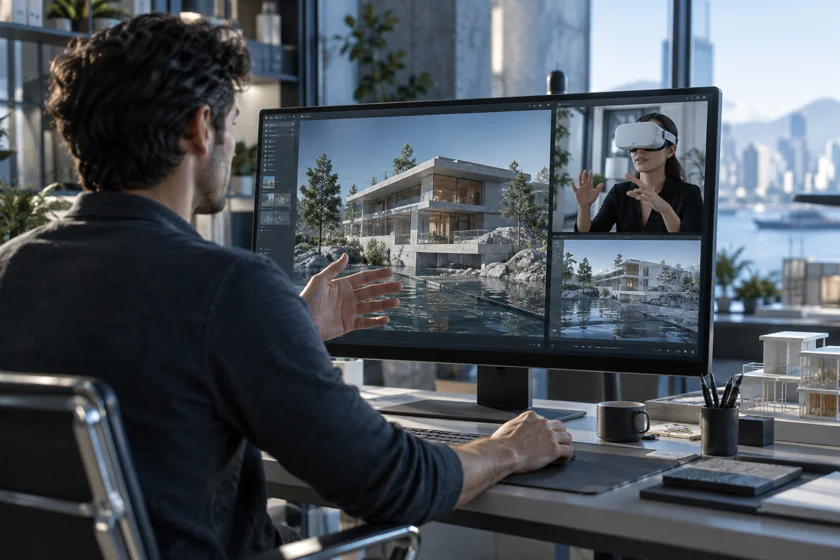
Present your desktop to someone on Quest, or follow their headset view. Use it for walkthroughs, lessons, and design reviews.

ONE ROOM, THROUGHOUT THE CONVERSATION
Start with a conversation. Add a camera, a screen, or a file when you need it, without leaving the meeting.
GOOD TO KNOW
The host needs a Quest headset with the POViewer app installed. Up to three guests can join through their browsers using an invitation and their names. Guests do not need a headset or a separate app.
No. Start meeting opens the room without sharing your screen. Use voice, chat, guest cameras, and files first. Choose Share screen later, and stop sharing whenever you want without ending the meeting.
The Quest host receives each guest’s camera and voice. Room chat is visible to everyone. If the host shares the POViewer window, guest camera tiles can also appear in the shared view. Each guest controls their own camera and microphone.
A guest can present a screen to the Quest host from a supported desktop browser, one presenter at a time. Mobile browsers may not support screen sharing. Guests cannot remotely control the headset; the Quest wearer performs actions on their device.
Approved web guests can upload APKs, PDFs, JPG, PNG, GIF, WebP, MP4, and WebM files up to 50 MB each. Uploading does not send the file: choose Send file to share it or Cancel to discard it. Quest users can download attachments and preview supported media; video playback depends on the device’s codecs.
The Quest wearer can download the APK and choose to open the system installer. They must approve installation and may need to allow installation from POViewer. App compatibility and signature checks still apply.
No. Uploaded files are held temporarily on the server. Sent files remain available for up to 20 minutes while their messages stay in the latest chat history. They are also cleared when the room ends or the server restarts. Downloaded copies remain on recipients’ devices.
Yes. Web guests can choose to record the shared view, then preview and download the result. View recordings remains available after leaving the meeting. Download before refreshing or closing the tab; POViewer does not automatically record meetings or save cloud recordings.
HAVE AN INVITATION?
Enter your name and invite code. Your host will let you in.
Join a meeting